This is a step by step guide to building product data that will configure into Profill for POD and warehoused goods.
Your program will need a Profill account and warehouse agreement on file to start any integration work.
You will also need to install the Profill Shopify Integration App.
Integrating your Shopify Store with Profill
This is a step by step guide to building product data that will configure into Profill for POD and warehoused goods.
Your program will need a Profill account and warehouse agreement on file to start any integration work.
You will also need to install the Profill Shopify Integration App.
- Log into Shopify
- Go to App and Sales Channels.
- Click Develop Apps
- Click Allow Custom App Development >> You will click this again on the second page
- Click Create an App >> And then give the app a name. (Profill POD)
- Click Configuration at the top of the page and set these Permissions .Shopify API Permissions
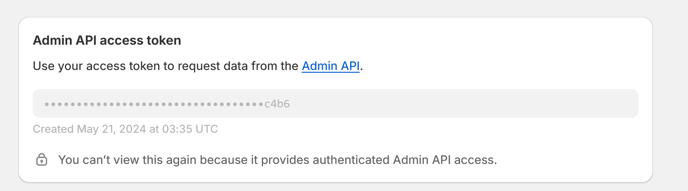
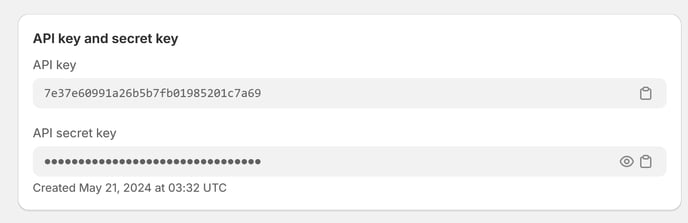
- After that is finished you will need to send back the API Admin Key, API Key and API Secret Key information to your account manager:
Next you can start building the product data in Shopify
- Start with the basic product information
- Product title
- Product description - If you don't have a product description built for SEO purposes you can use the information provided by the manufacturing supplier
- Product Media - All product images representing color variants of the SKU
- Variants - Both color and size are required variants for the integration to work
- Build Color first - Also upload the image mock up of each color to the color variant
- Then size - Size can represent apparel size or OS for items such as hats or accessories. For apparel sizes they need to be broken out by XS, S, M, L, XL, 2XL, 3XL and so on. If the customer would prefer you can also use the size of the item such as capacity as the size variant. An example would be the 40 oz intrepid. 40 oz could be used as the size variant vs OS (one size)
- Collections - Tag each item with collections based on the overall layout or navigation of the website
Configuring the Product Data for Profill. This step will require building custom data collection fields in your setting configurations.
Data that we need to consume to build product for Profill:
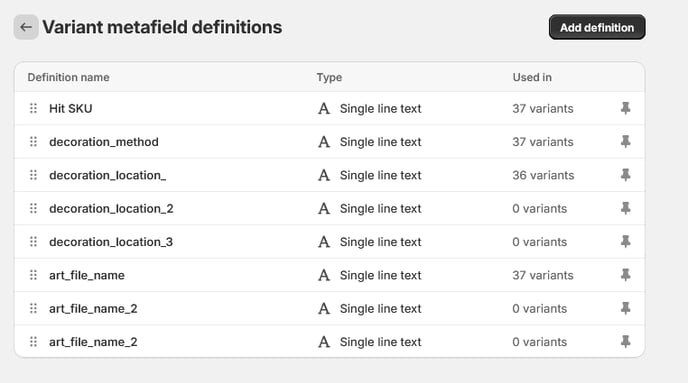
- Decoration Methods Available for POD
- DTG
- DTF
- Embroider
- Laser
- Decoration location
- Front
- Back
- Right Sleeve
- Left Sleeve
- Right Chest
- Left Chest
- Back yoke
- Back
- Hit SKU
- The full SKU including color and size if necessary from Hit
- Artwork File Name
Using Variant Meta Fields we can enter the information that is needed by Profill at the product set up phase.
-
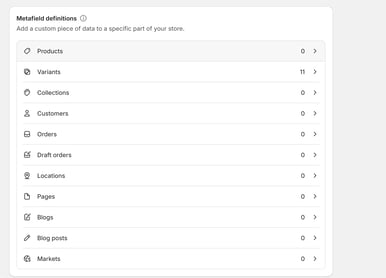
- Settings >>Custom Data from the settings navigation.
- The custom fields needs to be created at the Variant data level:
- Enter the following Fields. **Note that these fields must be in the same order and tiled the same as the model below**